
Installing TrueNAS
Installing TrueNAS
Lots of writing :(
Networking
Assuming you have created the inter-VM bridge network vmbr1, andwe havecan assignednow connect it to TrueNAS.
Connect TrueNAS to the VM,newly created bridge
This step requireswe canthat setyou uphave networkinginstalled TrueNAS Scale in TrueNAS.a VM.
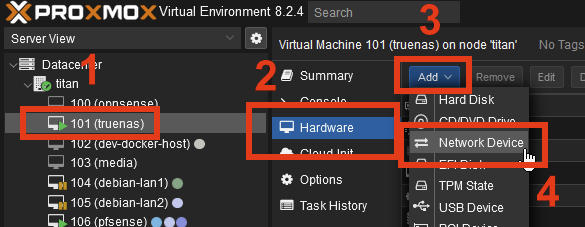
- Select your TrueNAS VM
- Go to Hardware
- Click Add
- Select Network Device:
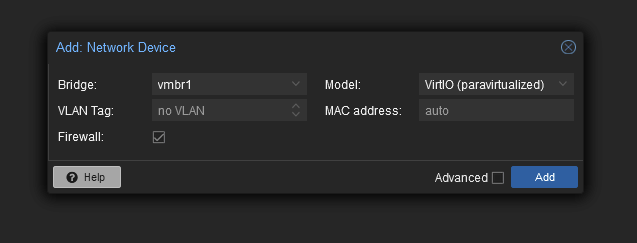
- Select the newly created
vmbr1and click Add:
Viewing TrueNAS network configuration
- Open the TrueNAS web UI using whatever IP address TrueNAS is reachable at.
- Navigate to Networking. It should look roughly like this:
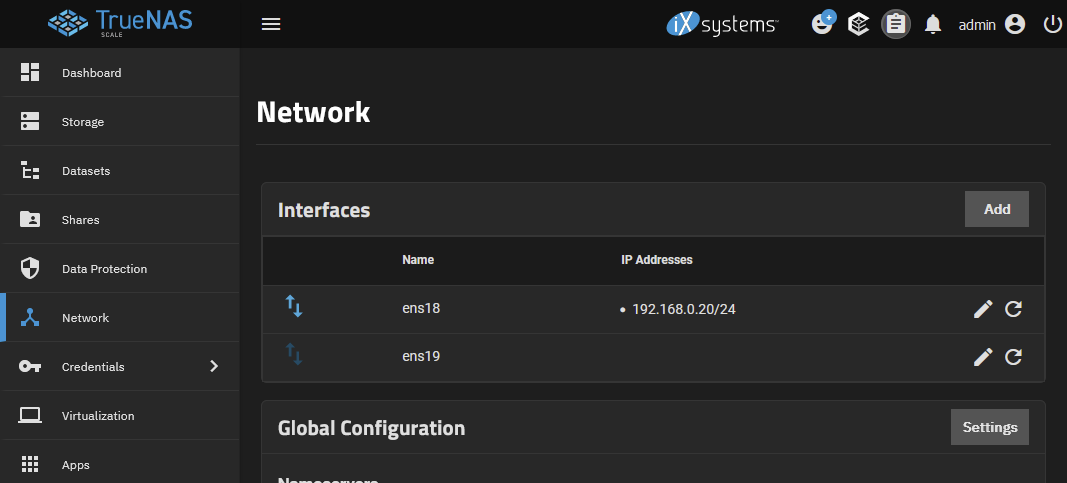
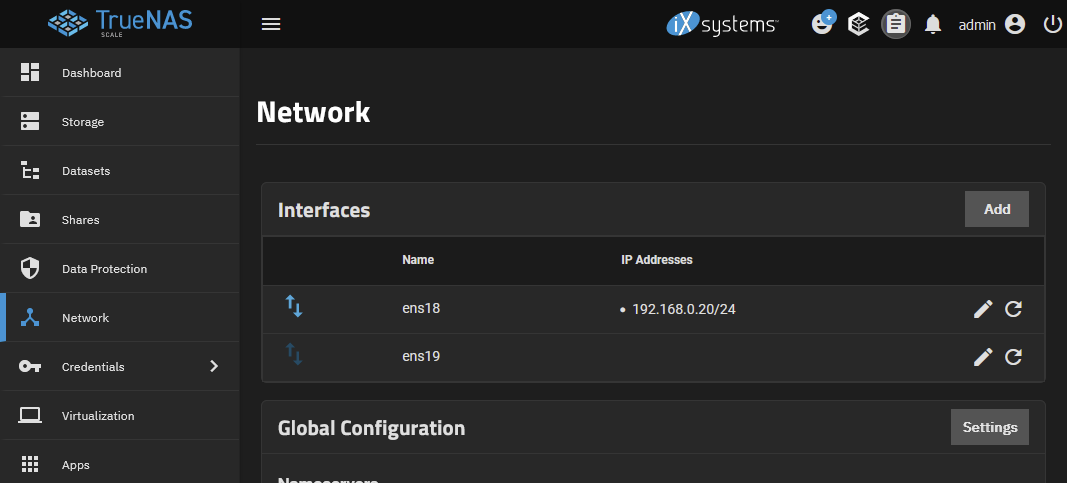
Primarily, you will now see two interfaces. Most likely, only one of them will have an IP address assigned already. This is the WAN, or the "where TrueNAS gets internet" interface.
The second interface however will probably not have any IP address. This is the vmbr1 inter-VM bridge network we created.
Configuring the bridge interface
Make absolutely sure you do not modify the firstprimary interface.network Doinginterface, as doing so may make the machine unreachable via network.
Configure the inter-VM bridge to not use DHCP, and instead manually assign the IP 192.168.255.20:
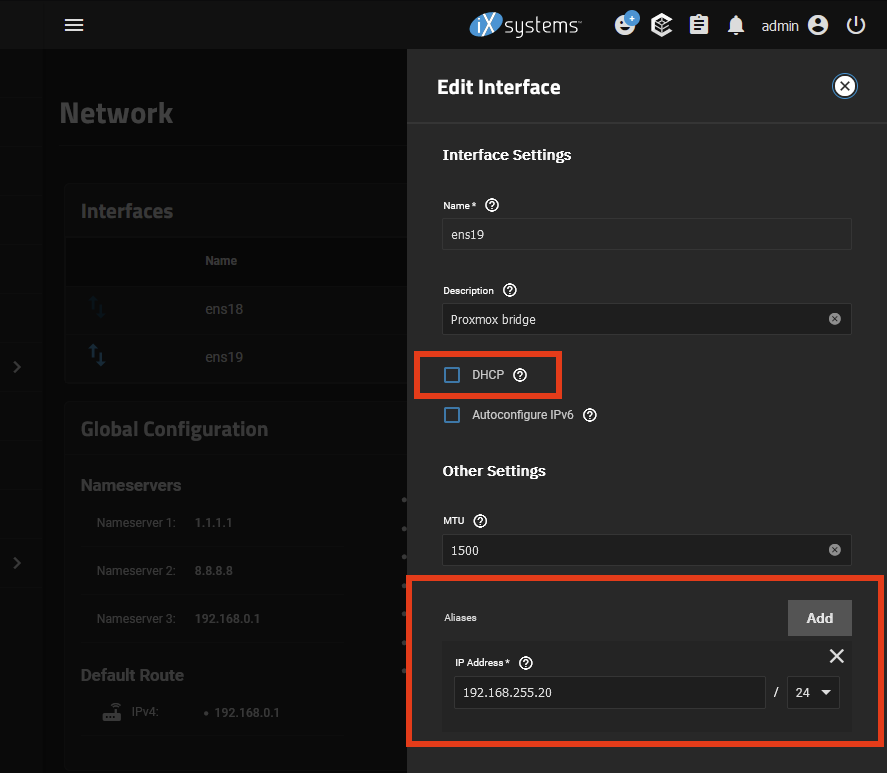
Save the settings, click [Test ConfigurationConfiguration] and then [Save Configuration.Configuration].