
Mount a network drive
In this guide, we will walk through adding a network drive in Windows.
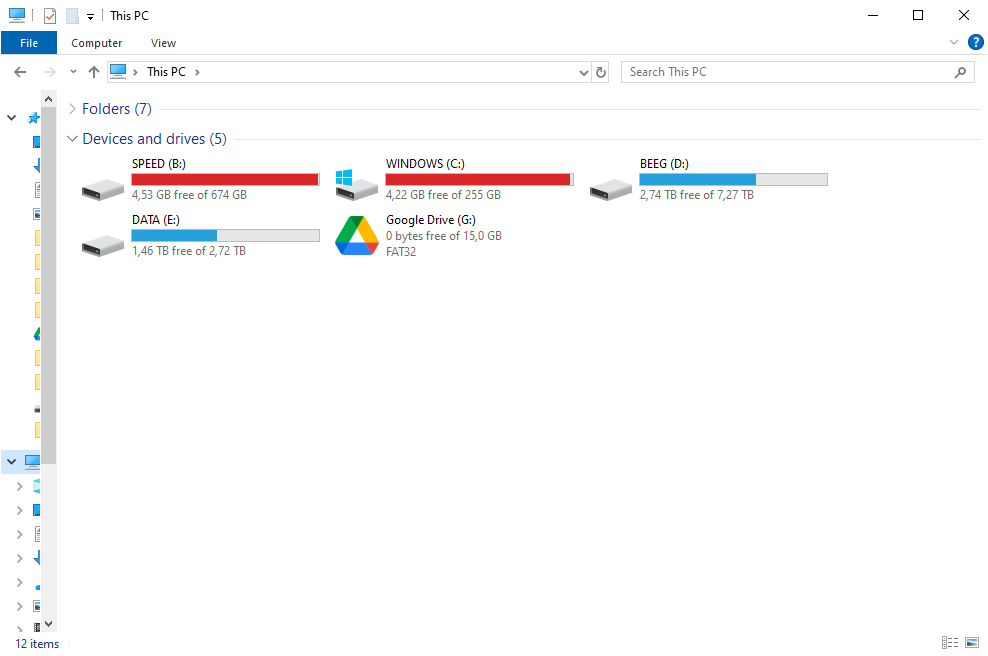
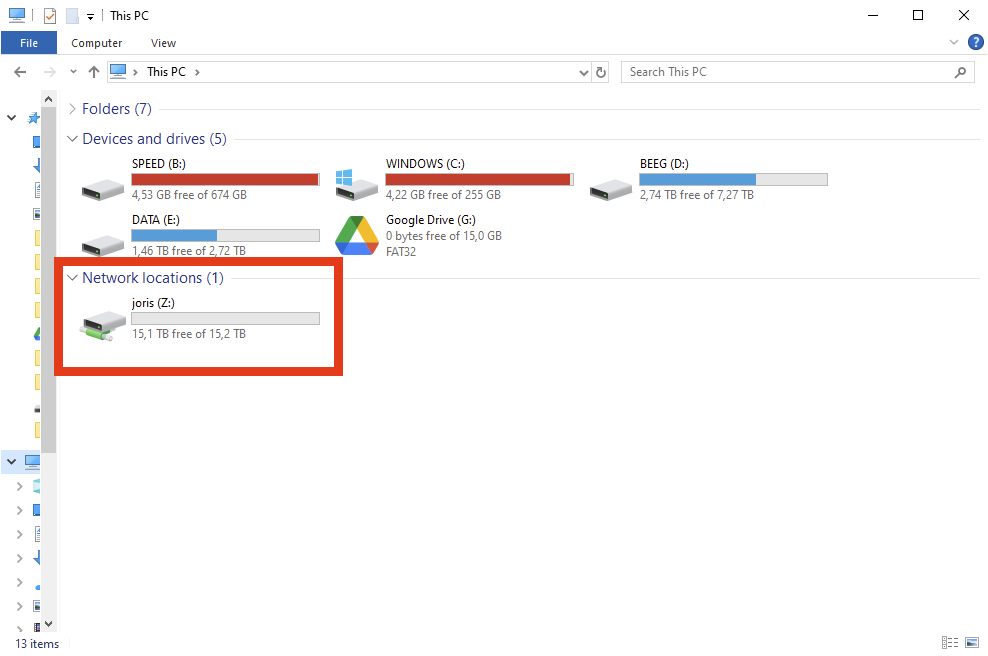
That means going from this:
To this:
Prerequisites
- You have connected to Tailscale.
- You have received the following things from me:
- The name of the network share created for you;
- The username and password you need to authenticate with.
- If any of these were not provided to you, please contact me.
Before we begin..
I SHALL NOT BE LIABLE FOR ANY DAMAGES OR LOSSES ARISING FROM ANY USE OF THE NETWORK SHARE, INCLUDING ANY INTERRUPTIONS TO THE NETWORK SHARE, INCLUDING, BUT NOT LIMITED TO, ANY POWER OUTAGES, SYSTEM FAILURES, NETWORK ATTACKS, SCHEDULED OR UNSCHEDULED MAINTENANCE, OR OTHER INTERRUPTIONS.
YOU are responsible for keeping enough backups of your data.
Recommended reading: https://www.backblaze.com/blog/the-3-2-1-backup-strategy/
With that out of the way, let's begin!
Instructions
First, open Windows Explorer, and navigate to This PC:
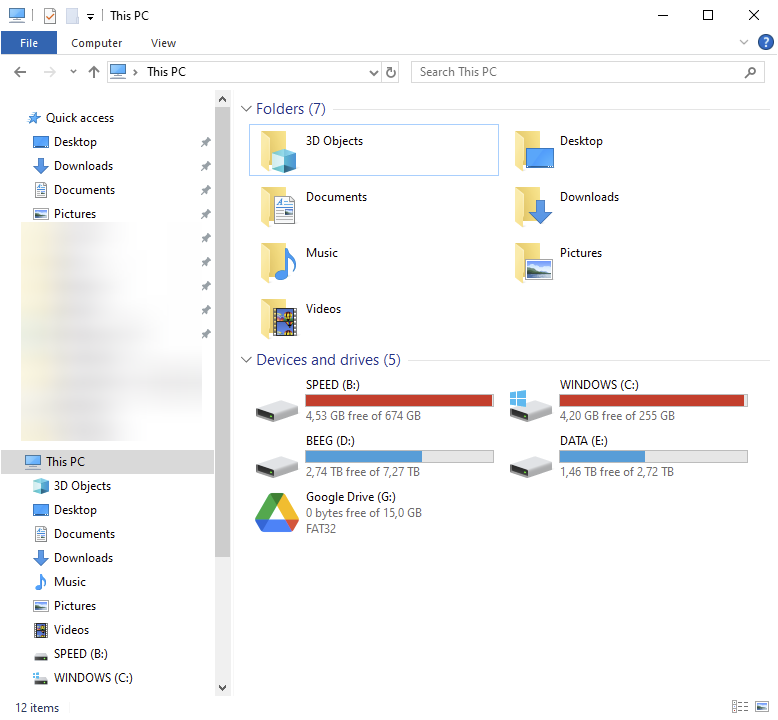
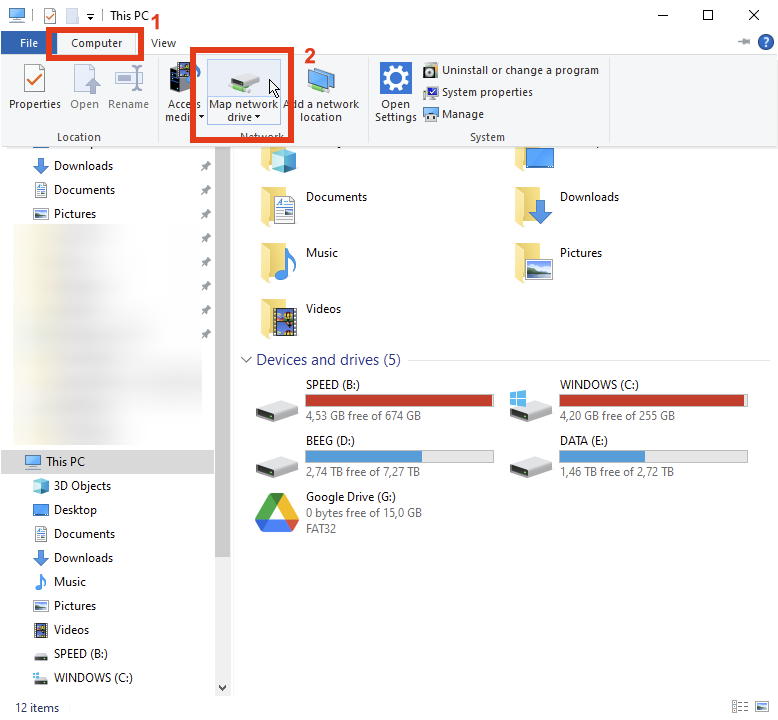
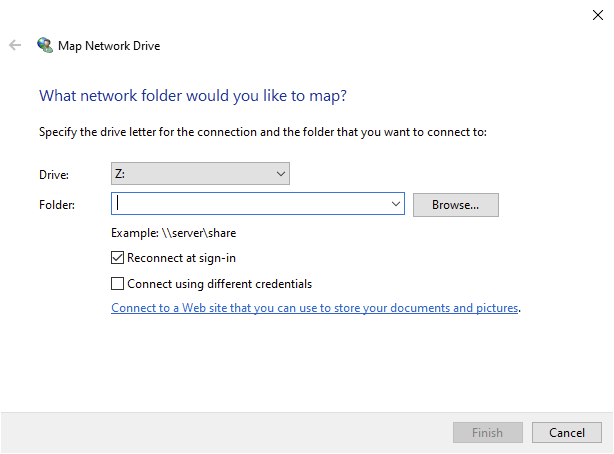
You should be greeted by a window that looks something like this:
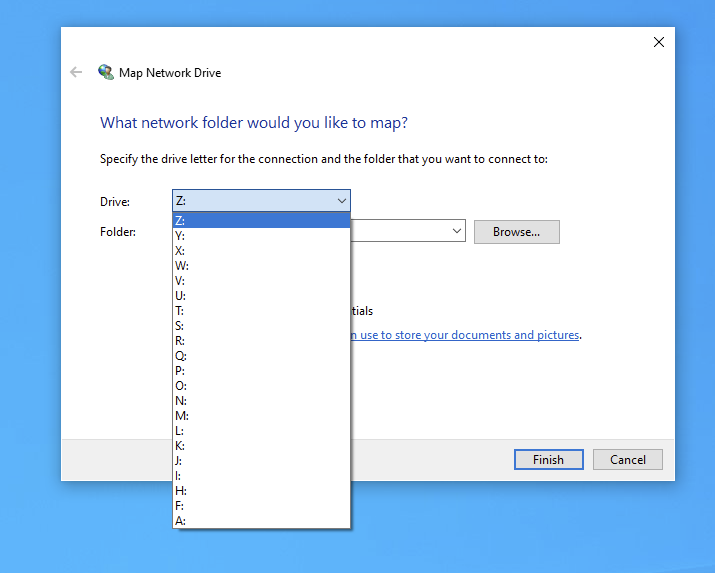
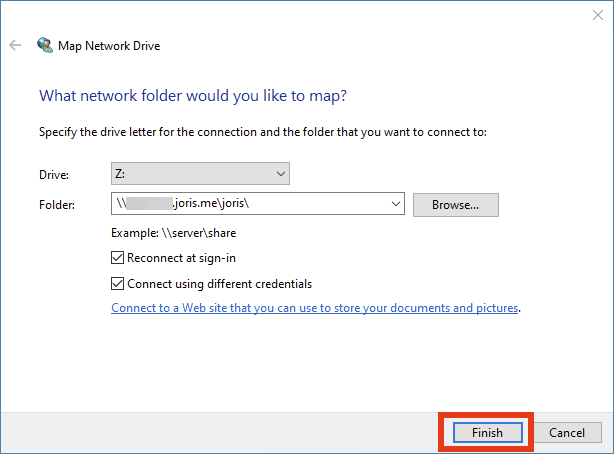
If you want, choose a drive letter of your choice:
Then, for Folder, enter the following:
\\smb.ts.joris.me\yourShareNameHere\For example, my share is called joris, so for me it looks like this:
\\smb.ts.joris.me\joris\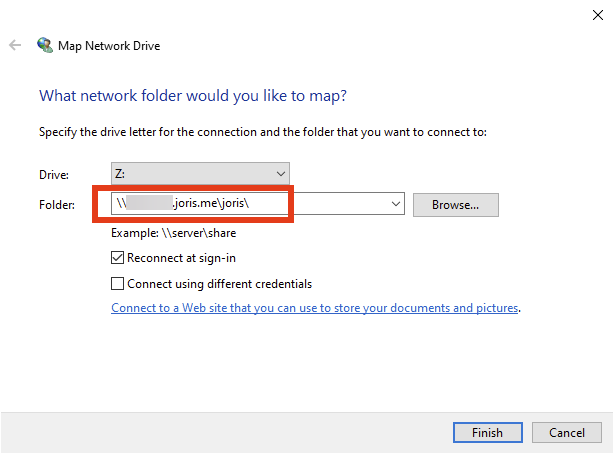
Then, check the box that says "Connect using different credentials".
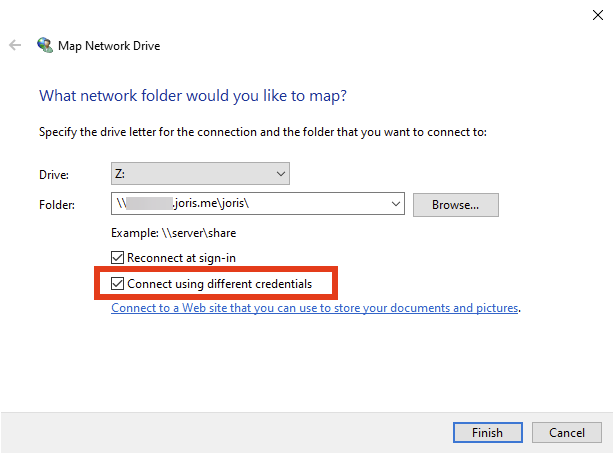
Next, click Finish.
You will see a window that looks like this:
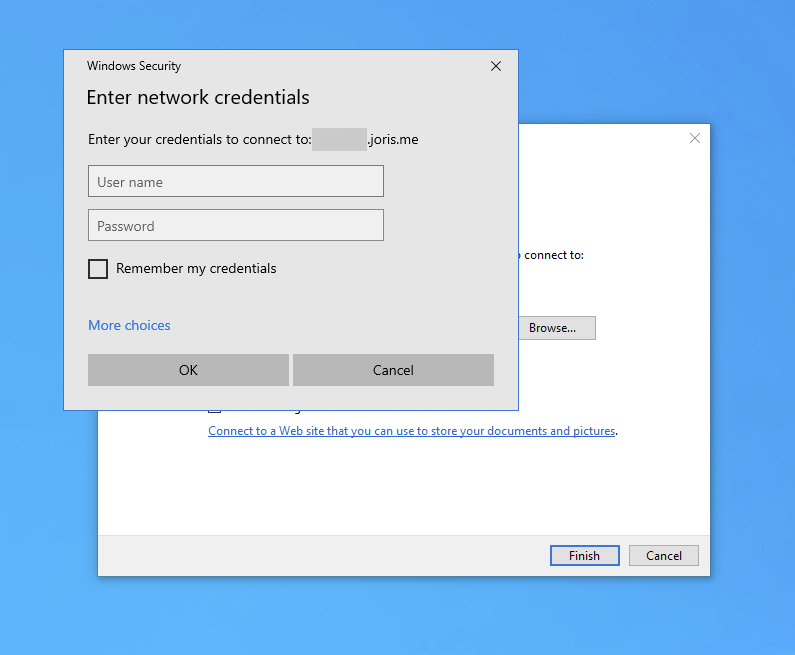
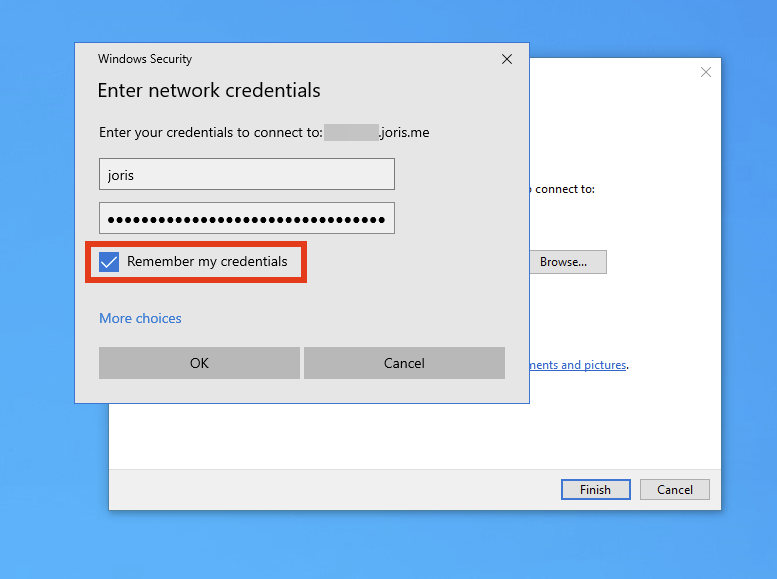
Enter the credentials I provided you, and check "Remember my credentials":
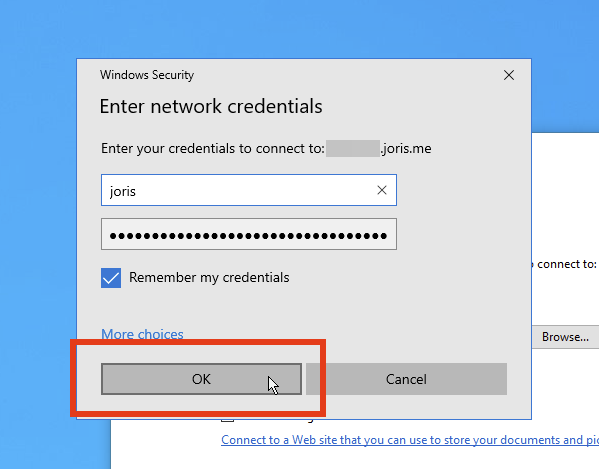
Then click OK:
And you're done!
You will probably be greeted by the drive:
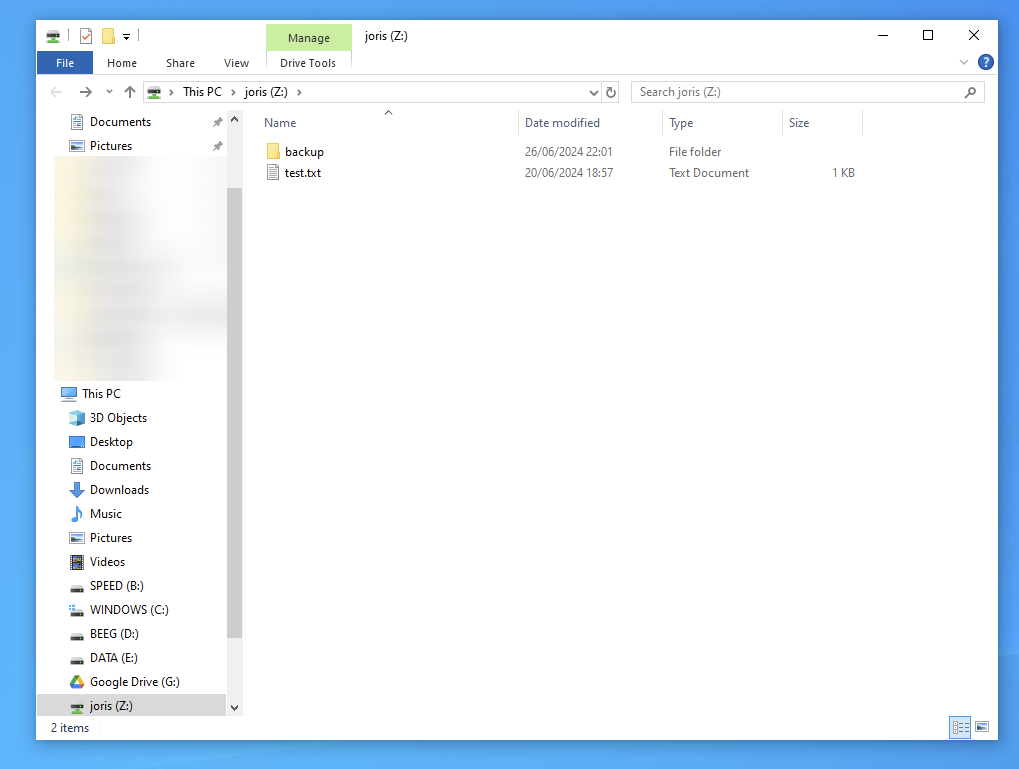
In your case, there won't be any existing files.