
Connecting to Tailscale
Introduction
Many services I run require a safe and secure connection between you, the user, and the server running the service. To facilitate this, I use a great piece of software called Tailscale.
It allows our devices to connect via the the internet, even if we are physically far apart, and even if services are running inside an isolated machine on my or your home network.
Check if you have Tailscale
If your device is running Windows, you can check your taskbar tray to see if Tailscale is already running.

Do you see the above icon in your taskbar? Then continue to

Installing Tailscale
If you do not already have Tailscale installed, head over to the Tailscale download page and follow the instructions: https://tailscale.com/download
Log in to Tailscale
You do not need an account. You will be connecting to my tailnet using an authentication key.
1. Get an authentication key
A Tailscale authentication key looks like this:
tskey-auth-k5MukmtKx621CNTRL-Te6eVCugAb9gdj27hJqYY9RNRdRcQcN1If I have not already provided you with an authentication key, contact me.
2. Open a command prompt or terminal
Open the Windows search menu and type in: cmd
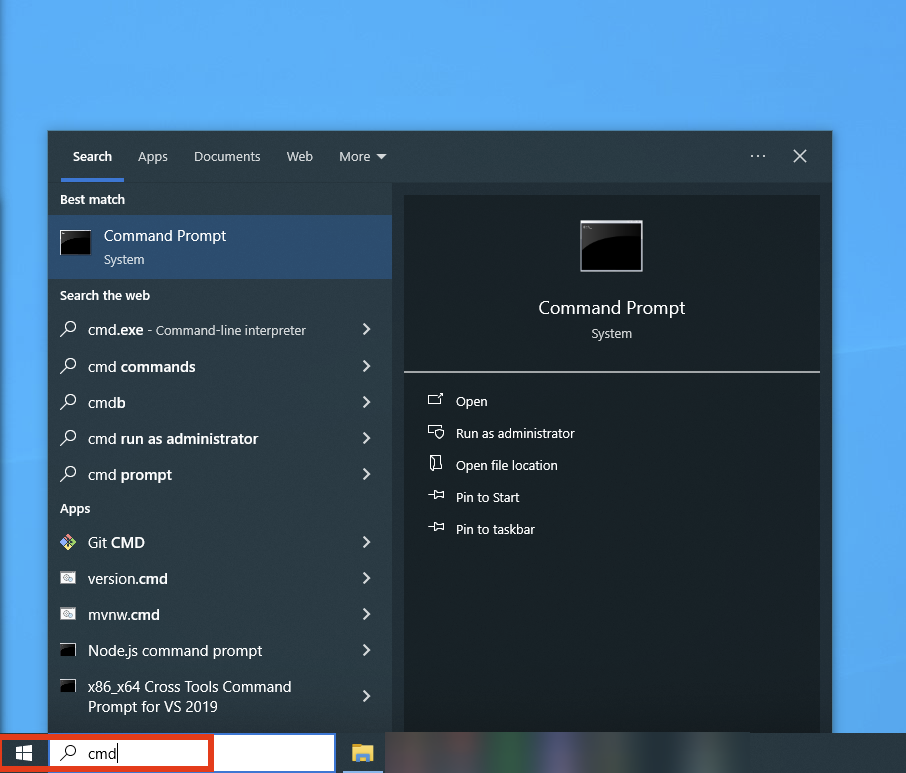
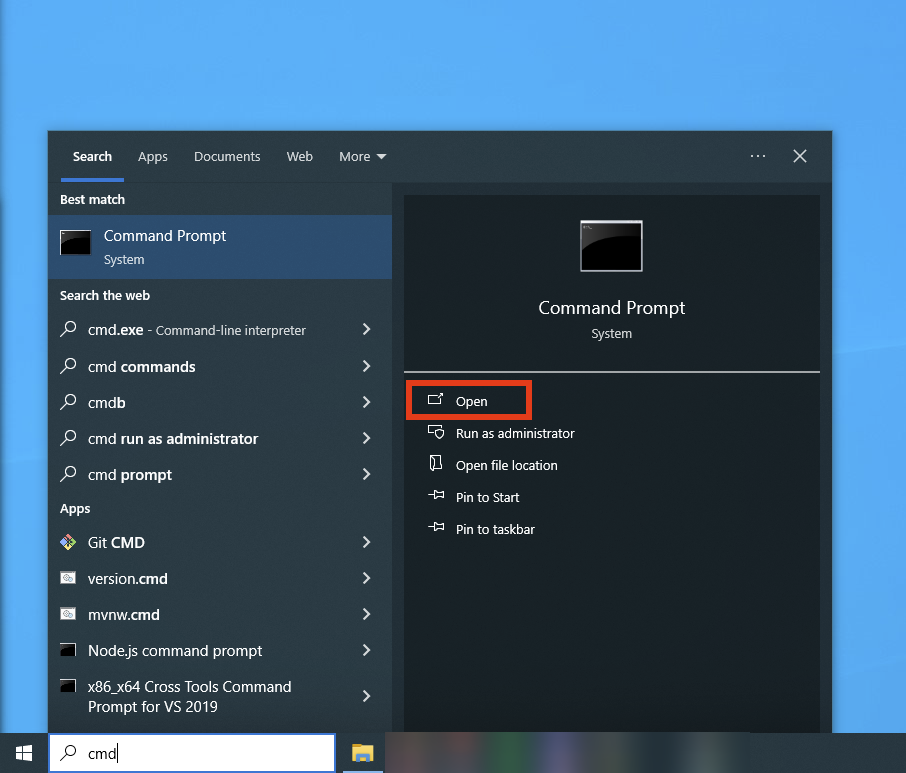
Then, click Open:
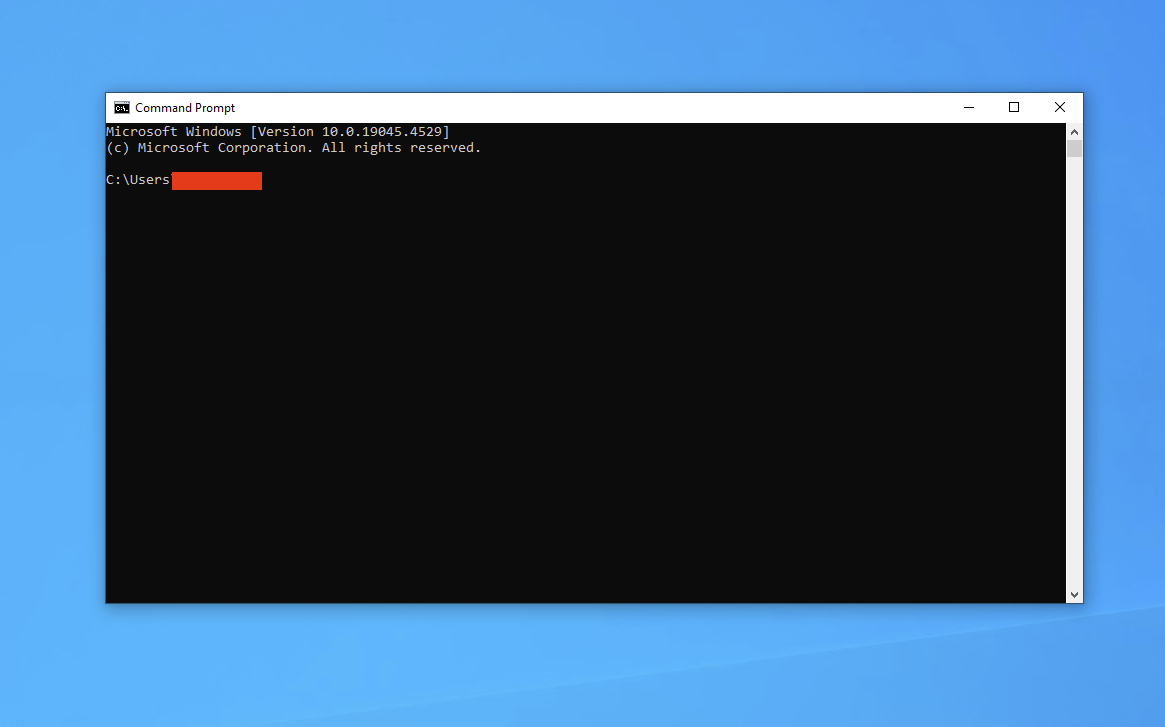
You should now see a window that looks like this (minus the red bar):
3. Login and launch Tailscale
Now that you have the command prompt open, type the following:
tailscale up --auth-key PUTTHEKEYHERETip: You can right-click the window to paste from your clipboard. Use this to paste the authentication key.
To illustrate, an example using the authentication key from earlier:
tailscale up --auth-key tskey-auth-k5MukmtKx621CNTRL-Te6eVCugAb9gdj27hJqYY9RNRdRcQcN1