I SHALL NOT BE LIABLE FOR ANY DAMAGES OR LOSSES ARISING FROM ANY USE OF THE NETWORK SHARE, INCLUDING ANY INTERRUPTIONS TO THE NETWORK SHARE, INCLUDING, BUT NOT LIMITED TO, ANY POWER OUTAGES, SYSTEM FAILURES, NETWORK ATTACKS, SCHEDULED OR UNSCHEDULED MAINTENANCE, OR OTHER INTERRUPTIONS.
**YOU** are responsible for keeping enough backups of your data**.**
**Recommended** reading: [https://www.backblaze.com/blog/the-3-2-1-backup-strategy/](https://www.backblaze.com/blog/the-3-2-1-backup-strategy/)
With that out of the way, let's begin! ### Instructions First, open Windows Explorer, and navigate to **This PC**: [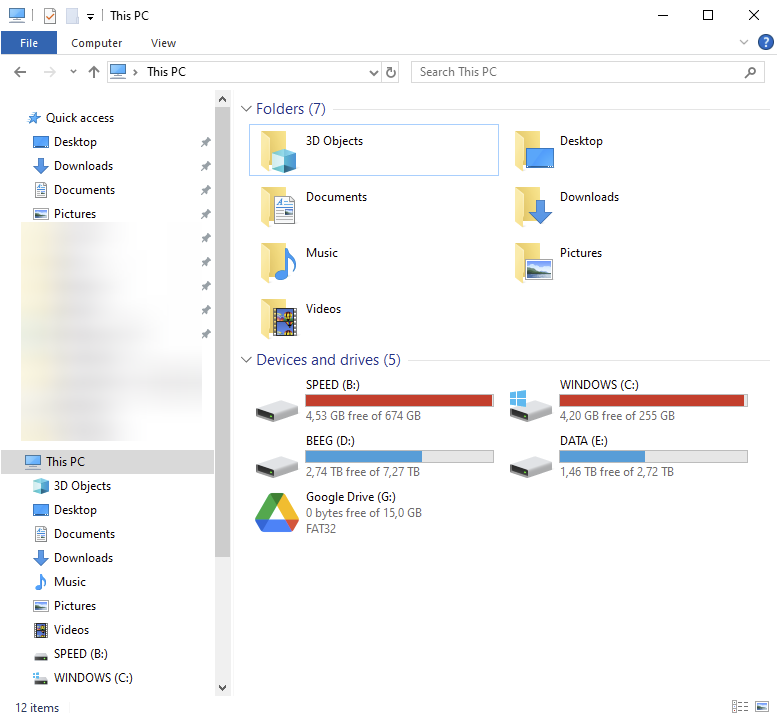](https://wiki.joris.me/uploads/images/gallery/2024-06/g8C88HsLKom65q6Q-image.png) Then, navigate to the **Computer** tab and click the **Map network drive** button: [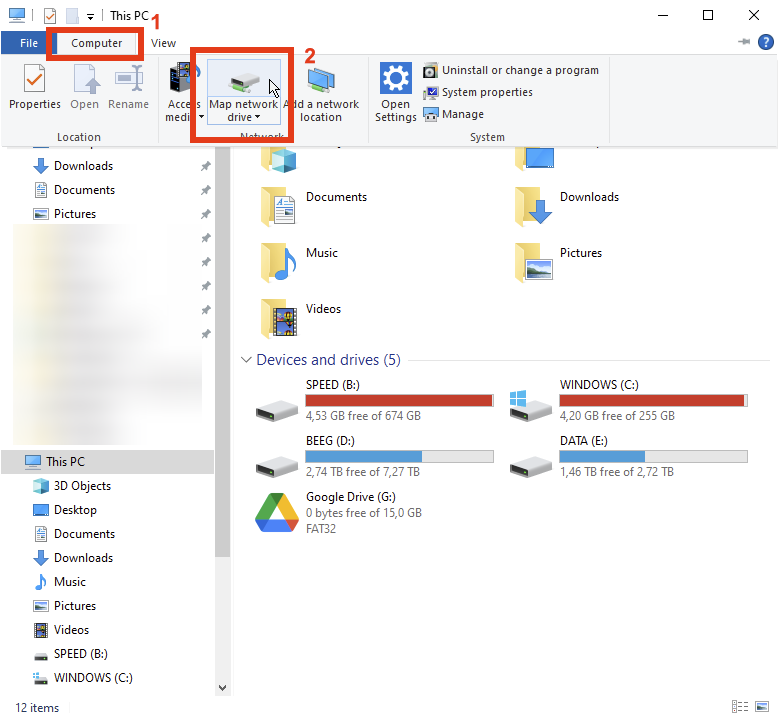](https://wiki.joris.me/uploads/images/gallery/2024-06/TA0gTKuRen5sWS8O-image.png) You should be greeted by a window that looks something like this: [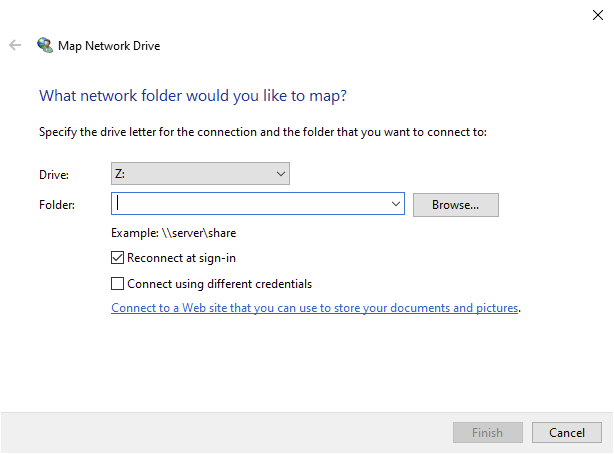](https://wiki.joris.me/uploads/images/gallery/2024-06/U5VIDxu8QX1GCN0E-image.png) If you want, choose a drive letter of your choice: [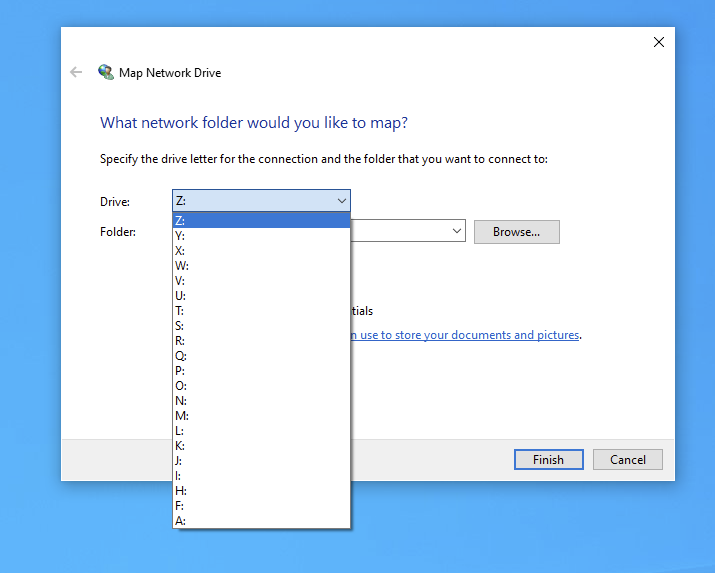](https://wiki.joris.me/uploads/images/gallery/2024-06/Mn0l8CVIvIrT4QoH-image.png) Then, for **Folder**, enter the following: ``` \\smb.ts.joris.me\yourShareNameHere\ ``` **For example**, my share is called `joris`, so for me it looks like this: ``` \\smb.ts.joris.me\joris\ ``` [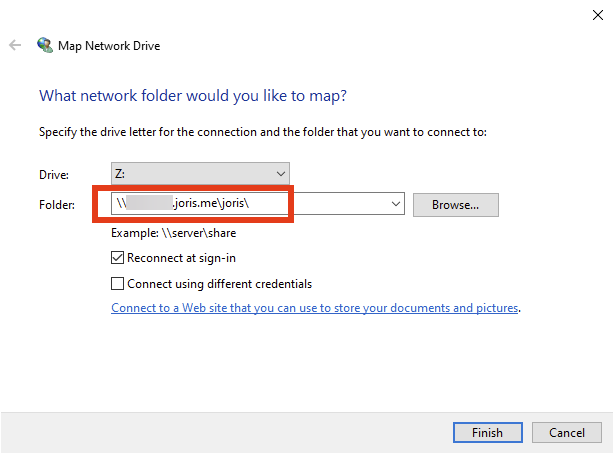](https://wiki.joris.me/uploads/images/gallery/2024-06/HuaMPDuBTasYuKpu-image.png) Then, **check the box** that says "Connect using different credentials". [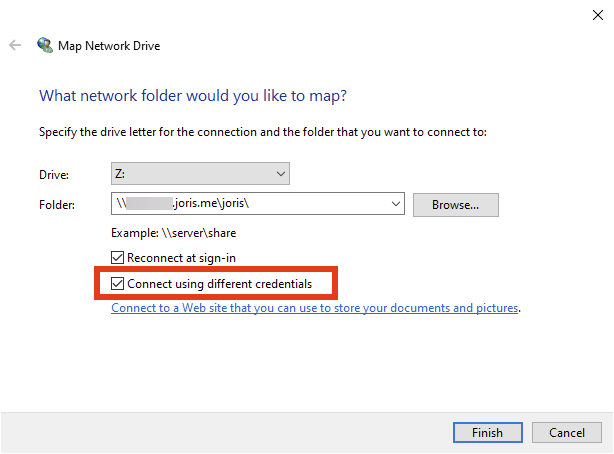](https://wiki.joris.me/uploads/images/gallery/2024-06/sMEDJbUnzs9V8ut0-image.png) Next, click **Finish**. [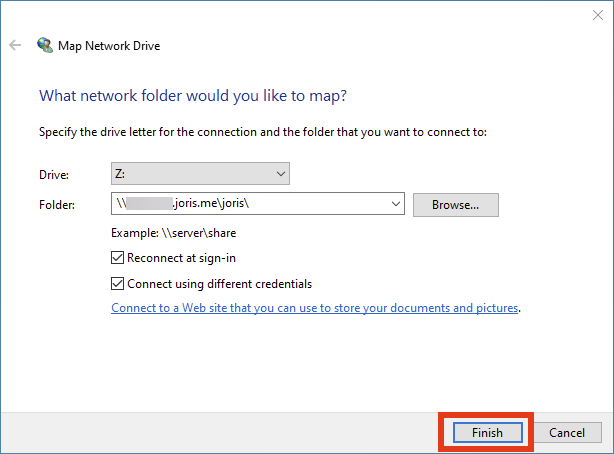](https://wiki.joris.me/uploads/images/gallery/2024-06/GWiM06tJOScObCYn-image.png) You will see a window that looks like this: [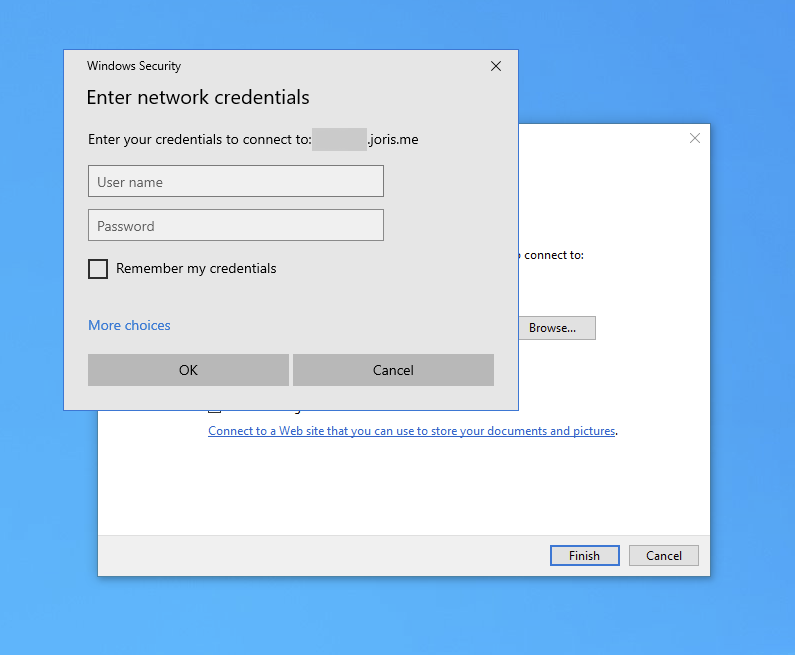](https://wiki.joris.me/uploads/images/gallery/2024-06/1fcUi5JwCNYWLYEm-image.png) Enter the credentials I provided you, and check "Remember my credentials": [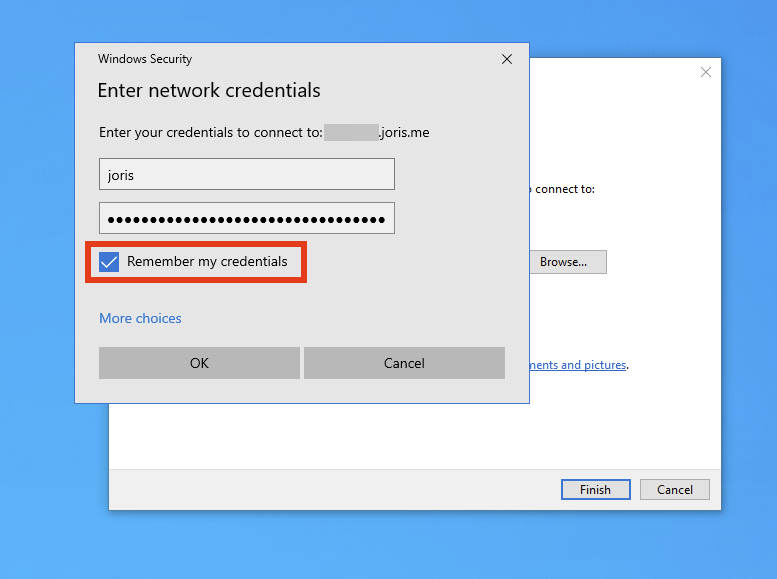](https://wiki.joris.me/uploads/images/gallery/2024-06/36dYWpmAInyXqLqM-image.png) Then click **OK:** [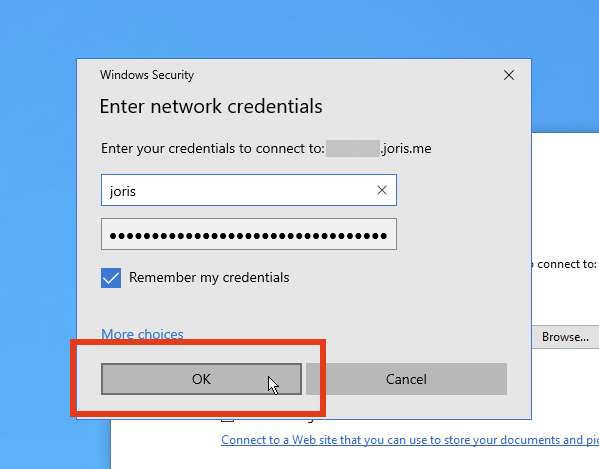](https://wiki.joris.me/uploads/images/gallery/2024-06/jVf4LVfqc8hyvThO-image.png) **And you're done!** You will probably be greeted by the drive: [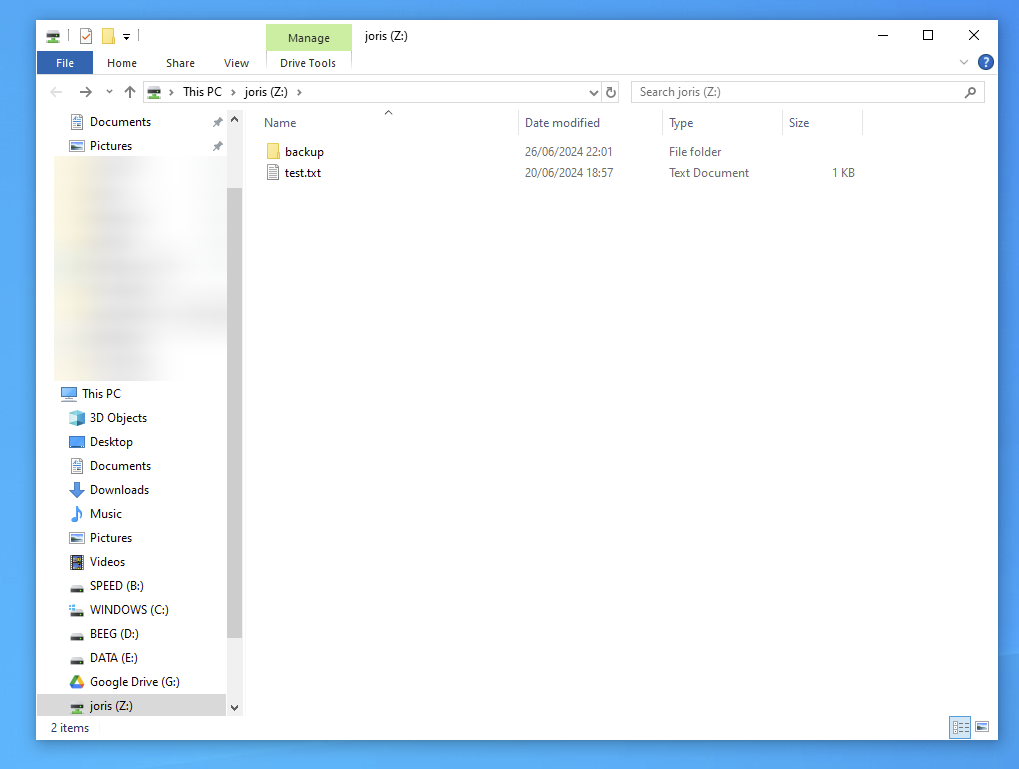](https://wiki.joris.me/uploads/images/gallery/2024-06/HvxifLsiYEE1hA8S-image.png) In your case, there won't be any existing files.