# Connecting via Tailscale

Many services I run require a safe and secure connection between you and the server running the service. To facilitate this, I use a piece of software called **Tailscale**.

It allows our devices to connect via the the internet, even if we are physically far apart, and even if services are running inside an isolated machine on my or your home network.

### Check if you have Tailscale

If your device is running Windows, you can check your taskbar tray to see if Tailscale is already running.

#### 1. Tailscale is disconnected

![image.png](https://wiki.joris.me/uploads/images/gallery/2024-06/scaled-1680-/lAC2FBNvcDUUOjyq-image.png)

**Do you see the above icon in your taskbar?** Then continue to [Log in to Tailscale](#bkmrk-log-in-to-tailscale).

#### 2. Tailscale is connected

![image.png](https://wiki.joris.me/uploads/images/gallery/2024-06/scaled-1680-/86mAVuqyA473dqUn-image.png)

If you see the above icon, continue to [Conclusion](#bkmrk-conclusion).

#### 3. I don't see either icon  


Continue reading for instructions on how to install Tailscale.

---

### Installing Tailscale

If you do not already have Tailscale installed, head over to the Tailscale download page **and follow the instructions:** [https://tailscale.com/download](https://tailscale.com/download)

---

### Starting Tailscale

<p class="callout success">**You do not need an account.** You will be connecting to my *tailnet* using an authentication key.</p>

#### 1. Get an authentication key

A Tailscale authentication key looks like this:

```
tskey-auth-k5MukmtKx621CNTRL-Te6eVCugAb9gdj27hJqYY9RNRdRcQcN1
```

If I have not already provided you with an authentication key, **contact me.**

#### 2. Open a command prompt or terminal

Open the Windows search menu and type in: `cmd`

[![image.png](https://wiki.joris.me/uploads/images/gallery/2024-06/scaled-1680-/RnjmwQw7NOwBXPy2-image.png)](https://wiki.joris.me/uploads/images/gallery/2024-06/RnjmwQw7NOwBXPy2-image.png)
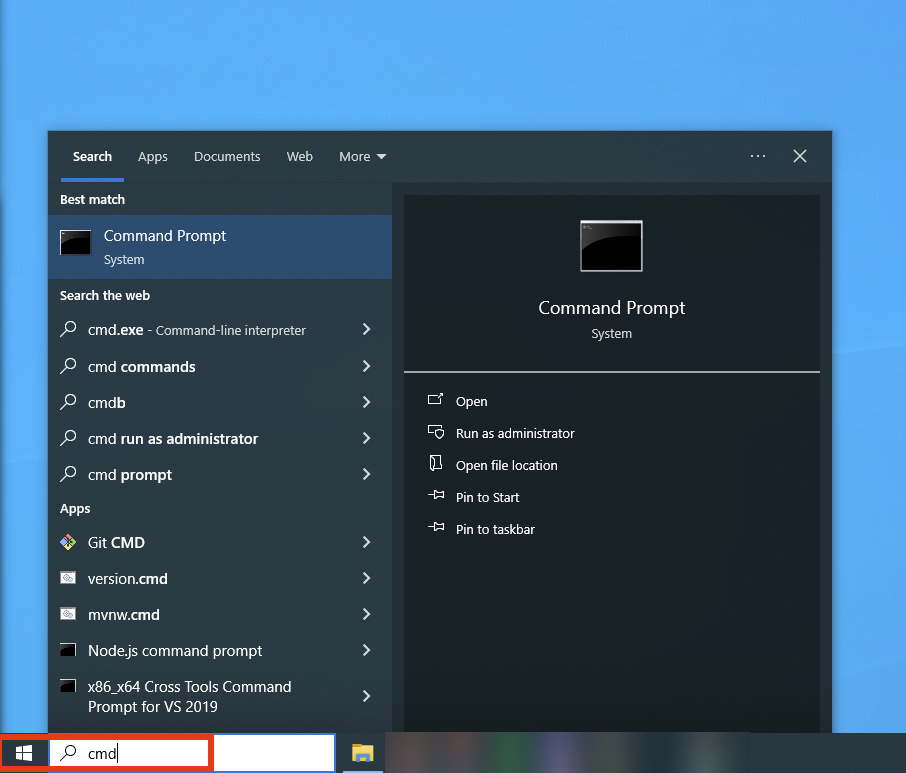
Then, click **Open**:

[![image.png](https://wiki.joris.me/uploads/images/gallery/2024-06/scaled-1680-/3kZqKfIyS4LNxMBt-image.png)](https://wiki.joris.me/uploads/images/gallery/2024-06/3kZqKfIyS4LNxMBt-image.png)
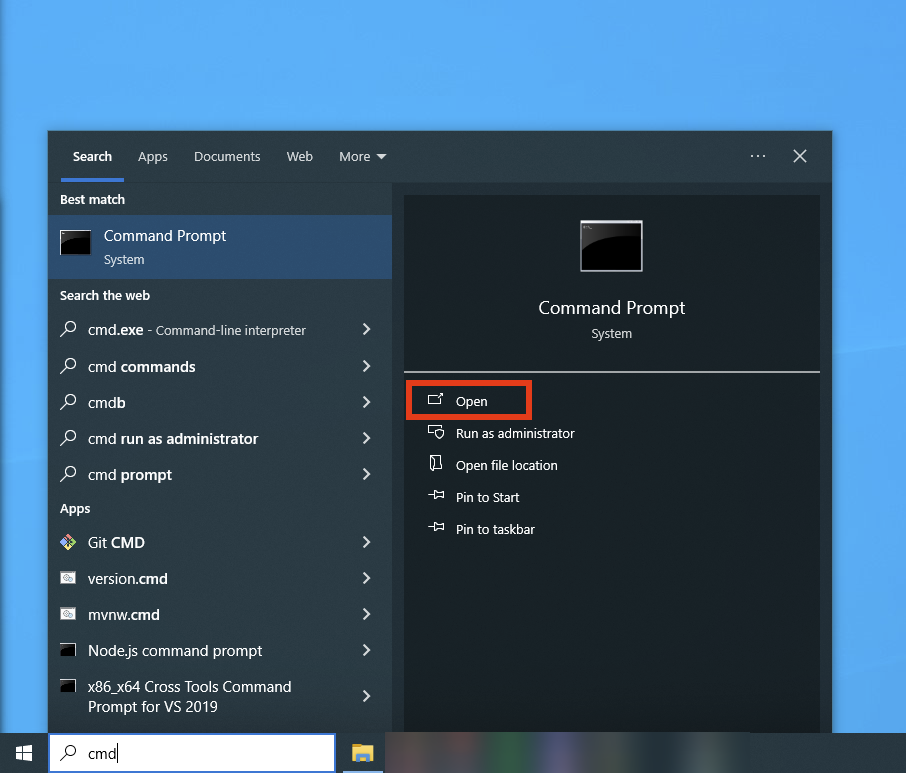
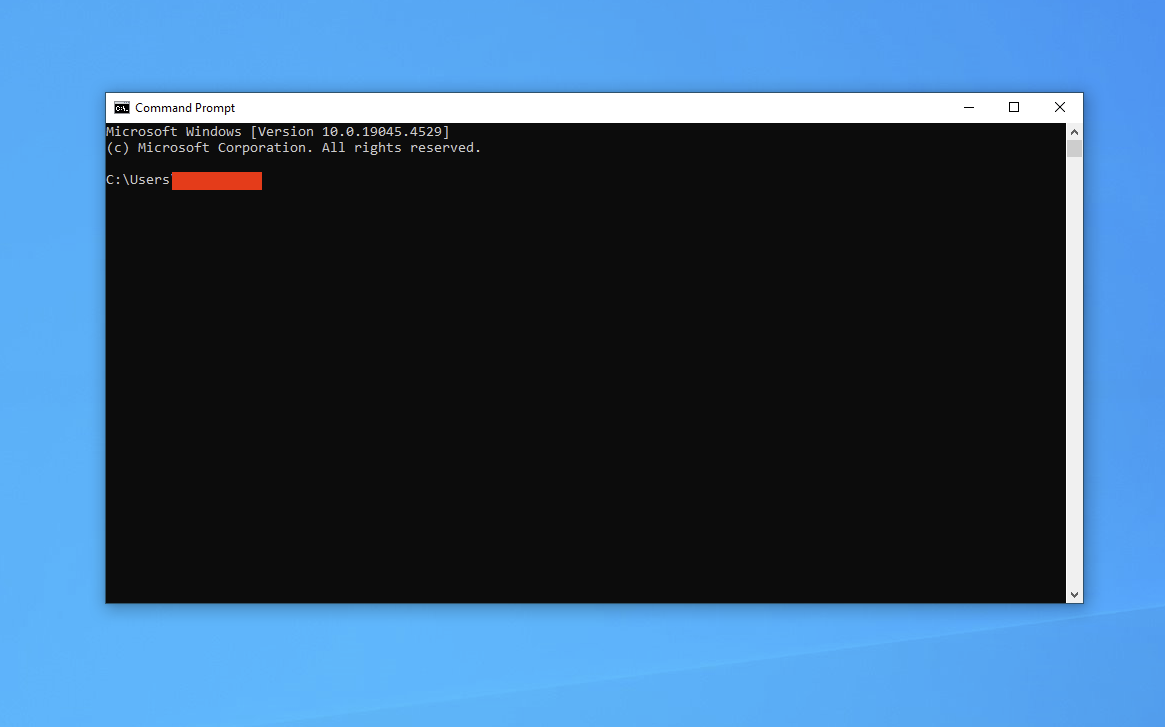
You should now see a window that looks like this (minus the red bar):

[![image.png](https://wiki.joris.me/uploads/images/gallery/2024-06/scaled-1680-/1UXcn6bOjaPVTu3U-image.png)](https://wiki.joris.me/uploads/images/gallery/2024-06/1UXcn6bOjaPVTu3U-image.png)
#### 3. Login and launch Tailscale

Now that you have the command prompt open, type the following:

```
tailscale up --auth-key PUTTHEKEYHERE
```

<p class="callout info">**Tip**: You can **right-click** the window to paste from your clipboard. Use this to paste the authentication key.</p>

To illustrate, an example using the authentication key from earlier:

```
tailscale up --auth-key tskey-auth-k5MukmtKx621CNTRL-Te6eVCugAb9gdj27hJqYY9RNRdRcQcN1
```

If all goes well, you should see basically no output:

[![image.png](https://wiki.joris.me/uploads/images/gallery/2024-06/scaled-1680-/Sp6thn7bBNGCHkNa-image.png)](https://wiki.joris.me/uploads/images/gallery/2024-06/Sp6thn7bBNGCHkNa-image.png)
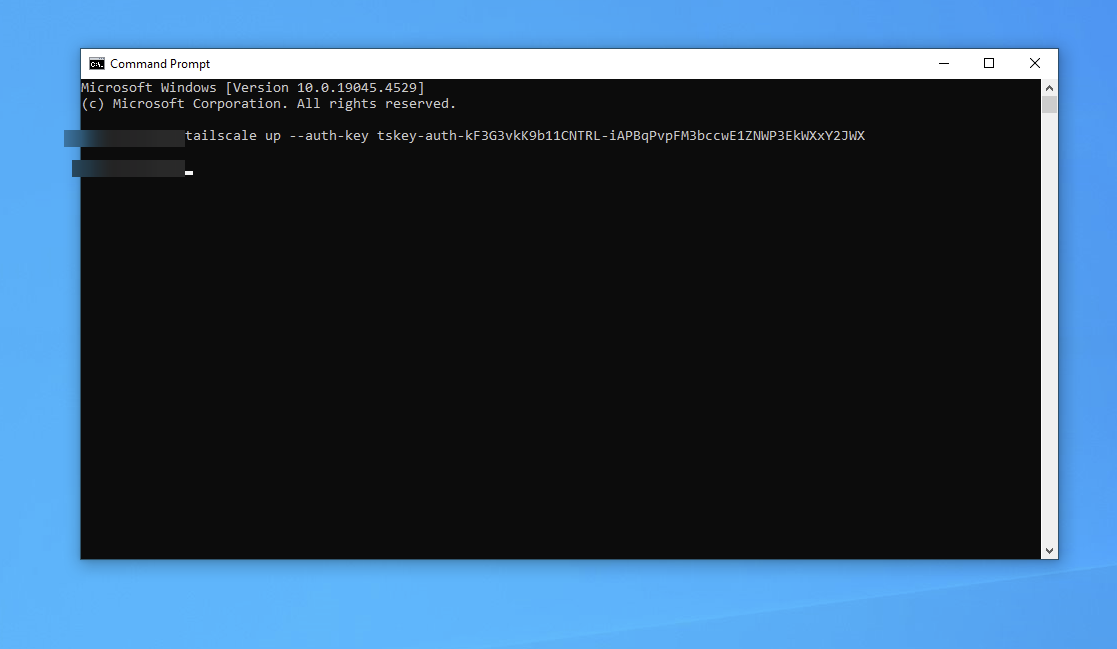
You can check if it worked by typing `tailscale status`. If you see a list of IP addresses and device names, you are connected!

## Conclusion

Good work! You are now connected to my Tailnet. This will allow you to access all services I've given you access to.

You can continue to the next guide: [Add a network drive](https://wiki.joris.me/books/network-storage/page/mount-a-network-drive-windows "Add a network drive")